Advanced Group Config
This page is a deep dive into configure of groups in Multiverse-Inventories, including a deeper explaination of how multiple groups with different set of sharables works, as well as more complex group configurations and features. If you are new to Multiverse-Inventories, you may want to start with the Basic Usage page .
Please read the usage instructions CAREFULLY, as incorrect configuration may lead to loss of player inventory data. It is highly recommended to BACK UP YOUR SERVER before making changes to Multiverse-Inventories configuration.
You should also make changes before players have joined the worlds you are configuring, as existing player data may be overwritten if they have existing data in those worlds.
Creating a New Group from Existing Worlds
When creating a new group, the inventories data for that group will be EMPTY. This means that if the individual ungrouped world you are adding to the group already have existing player data, that data will NOT be automatically migrated to the new group. You will need to manually migrate the data with the bulkedit commands if needed. To do this, you need to use the Bulkedit Player Profile Clone World Group Command .
For example, if you have an existing world called resource1 that has existing player data, and you want to create a new group called resourcegroup with that world in it, you can do the following commands:
/mvinv create-group resourcegroup resource1 all
/mvinv bulkedit playerprofile clone-world-group @all world=resource1 group=resourcegroup @allHowever, note that it is impossible to MERGE player data of multiple individual ungrouped world together, as there is no way to determine how to merge the data. This is because a player cannot have multiple bed spawn or health, hence merging does not make sense.
Wildcard and Regex Worlds
Sometimes, you may have too many worlds that you want to add to a group or have temporary worlds with different world names that keep changing on a regular basis. In these cases, you can use wildcard and regex expressions to match the world names that you want to add to a group.
- Simple use * for wildcard format, e.g.
world_*_playerwill match anything that matches exactly the string apart from the*such asworld_1_player,world_x_playerand so on. - For more control on the exact matching logic, you can use regex expressions by prefixing the world string with
r=, e.g.r=world_[0-9]_playerwill match anything that matches the regex such asworld_1_playerandworld_2_playerbut notworld_x_playeras the regex specifies only numbers 0 to 9 are allowed.
The parsing will be done automatically and updates every time a world load or unload. You can see the applicable worlds for the group with /mv info <groupname> command. Please be very careful of the wildcard use and ensure it does not accidentally match unwanted worlds.
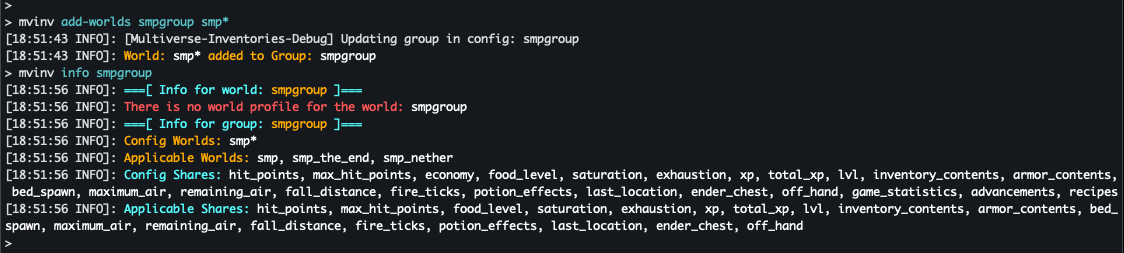
Some other example commands:
/mvinv add-worlds smpgroup,r=world_[0-9]_player
/mvinv add-worlds smpgroup,dungeon_*
/mvinv create-group adventuregroup,adventure* inventory,experience,healthComplex Grouping
Sometimes, there may be use cases where there is a need for different sets of worlds to share only specific shares, or only specific shares to be shared between certain sets of worlds.
For example, you may have 4 worlds, world1, world2, world3, and world4, and you want world1 and world2 to share a common last location, and world3 and world4 to share a common last location. Other inventory data should be shared among all 4 worlds. This example can be visualized in the table below:

To achieve this setup you can run the following commands: (assuming you are creating the groups from scratch)
/mvinv create-group group1 world1,world2 last_location
/mvinv create-group group2 world3,world4 last_location
/mvinv create-group group3 world1,world2,world3,world4 all,-last_locationIf you already have groups created, you can modify the shares with /mvinv add-share <groupname> <share1,share2,...> and /mvinv remove-share <groupname> <share1,share2,...> commands.
Group Conflicts
In generally, every world can have each share in only one group. This is different from each world "can only be in 1 group". Looking at the example above, world1 and world2 are in both Group1 and Group3, but there is no conflict as all the shares are only in 1 world. That is because last_location is only in Group1 and not in Group3. If Group3 also had last_location share, then there would be a conflict.
Group conflict checking is done automatically every time groups are updated with commands and an error message will be shown if there are any conflicts. To check group conflicts manually, run /mv check-group-conflict.