Commands Usage
If you're looking for the Multiverse-Portals , Multiverse-NetherPortals or Multiverse-Inventories Command References, click the links!
Looking for the permissions?
Click here to go the Big List O' Permissions!
Index
- Anchor Set Command
- Anchor List Command
- Anchor Delete Command
- Check Command
- Clone Command
- Config Command
- Confirm Command
- Coordinate Command
- Create Command
- Debug Command
- Delete Command
- Dumps Command
- Entity Spawn Config Info Command
- Entity Spawn Config Modify Command
- Gamerule List Command
- Gamerule Set Command
- Gamerule Reset Command
- Generators Command
- Help Command
- Import Command
- Info Command
- List Command
- Load Command
- Meta Info Command
- Meta Modify Command
- Modify Command
- Purge Entities Command
- Purge All Entities Command
- Regen Command
- Reload Command
- Remove Command
- Set Spawn Command
- Spawn Command
- Teleport Command
- Unload Command
- Who Command
- Who All Command
- Version Command
- World Border Add Command
- World Border Center Command
- World Border Damage Command
- World Border Get Command
- World Border Set Command
- World Border Warning Command
Introduction
In Multiverse, we have included a handy new in-game help system. To access this help, simply type /mv. In order to properly read this command reference, we'll walk through reading the "usage" of a command.
Command Case
Whenever reading this wiki or the in-game /mv help, you should remember that items in ALL CAPS should be replaced with a variable. Items in lowercase should be typed exactly how they appear.
Optional vs. Required Params
Items inside square braces ([]) are OPTIONAL where items inside (<>) are REQUIRED
Simple command example
Let's look at a simple one first:
This means that this command has one optional parameter, meaning you could type /mv info or /mv info world . Obviously, the command will do different things with or without its params. You can tell what those effects are by reading this wiki.
Complex command example
Let's look at the most complex example:
NOTE: This is the most complex command in MV2 and in order to use it correctly, please refer to the Create Command .
At first, you will notice that there are 2 required params, name, and environment. Then you will see the flags afterward. If you want to use a seed you must add --seed gargamel to the command string. If you want a generator the same principle applies: --generator BukkitFullOfMoon. The order of flags does not matter. Full examples of this command are located at the Create Command reference .
Flags
Many commands in Multiverse use flags, these can be one or two dashes. Two dash flags are whole words (e.g: --filter) and one dash flags are shorthand versions of the same thing (e.g: -f).
There are two flags that you will come across quite a lot: --filter and --page. These are used for filtering and selecting the page respectively of a paginated command. FYI, pagination does not apply when running from the console.
Anchor Set Command
Description
Anchors should be used if you have a place you want to go frequently. Using the /mv anchor set <name> command to first create an anchor, you can then use it in any command that takes a destination.
Usage
/mv anchor set <name> [location]<name>: The name of the anchor. If the anchor already exists, it location will be overwritten.[location]: The location of the anchor. Must be specified if running from the console.
Examples
/mv anchor set myanchor- Creates the anchor with the namemyanchorat your current location./mv anchor set coolanchor cool:1,2,3:10:12- Creates the anchor with the namecoolanchorat location worldcool, x: 1, y: 2, z: 3, pitch: 10, yaw: 12.
Permission
multiverse.core.anchor.create
For teleport permission of anchors /mvtp a:<anchorname>, see Anchor Destination .
Anchor List Command
Description
List all anchors and its corresponding locations.
Usage
/mv anchor list [--page <page> --filter <filter>]--page <page>: The page of the list to show. Defaults to 1.--filter <filter>: The filter to apply to the list.
Permission
multiverse.core.anchor.list
Anchor Delete Command
Description
Deletes an existing anchor. Note there is no way to undo this action.
Usage
/mv anchor delete <anchorname><anchorname>: The name of the anchor to delete. Command will fail if anchor does not exist.
Examples
/mv anchor delete coolanchor- Deletes the anchor with the namecoolanchor.
Permission
multiverse.core.anchor.delete
Check Command
Description
Checks if a player is allowed to teleport to a certain destination.
Usage
/mv check <destination><destination>: The destination to check.
Examples
/mv check cool:1,2,3:10:12- Checks if the player is allowed to teleport to location worldcool, x: 1, y: 2, z: 3, pitch: 10, yaw: 12.
Permission
multiverse.core.check
Clone Command
Description
Copies a world directory to another directory and all its configuration. Allows you to copy your world to another directory for a backup or to simply have two of the world for whatever reason you'd like.
Usage
/mv clone <world> <new-world-name> [--reset-world-config] [--reset-gamerules] [--reset-world-border]<world>: The world to clone. It must be an existing multiverse world.<new-world-name>: The name of the new world--reset-world-config: Resets all the world properties associated with the new world--reset-gamerules: All gamerules in the new world will be at their default values--reset-world-border: The world border will be gone in the new world
Examples
/mv clone world world_backup- Copies the worldworldtoworld_backup/mv clone myworld_nether myworld_nether_backup- Copies the worldmyworld_nethertomyworld_nether_backup/mv clone my_cloned_world my_cloned_world_now_cloned --reset_gamerules --reset_world_border --reset_world_config- Copies the worldmy_cloned_worldtomy_cloned_world_now_clonedand resets everything inworlds.yml, gamerules and the world border
Permission
multiverse.core.clone
Config Command
Description
Changes the config.yml properties. See the configuration documentation for more information.
Usage
/mv config <property> <value><property>: The property to change.<value>: The value to set the property to.
Examples
/mv config confirm-mode disable_command_blocks- Changes theconfirm-modetodisable_command_blocksinconfig.yml
Permission
multiverse.core.config
Confirm Command
Description
Confirms an action that could destroy the life, the universe and everything. This command will confirm a requested action. See the /mv delete command for an example use. If you fire up your server and type /mv confirm, nothing will happen.
See also: Delete Command
Usage
/mv confirm [otp][otp]: The OTP to confirm. This may not be required depending on theconfirm-modeset inconfig.yml.
Examples
/mv confirm 431- Confirms an action with the OTP431
Permission
multiverse.core.confirm
Coordinate Command
Description
Displays your or another player's current location info. It displays general location info:
- World
- World alias
- World scale
- Coordinates
- Facing direction
Usage
/mv coordinates [player][player]: The player to get the location of. Must be specified if running from the console.
Examples
/mv coordinates benthecat10- Displays the coordinates of the playerbenthecat10
Permission
multiverse.core.coord
Create Command
Description
The create command allows you to add new worlds to your server. Each world has many properties that you can edit and tweak. Please see the World Properties page for information on each of these settings. In addition, you can modify worlds in game by using the /mv modify command. Please see the appropriate section below for Seeds or Custom Generators .
Usage
/mv create <name> <environment> [--seed <seed>] [--generator <generator[:id]>] [--world-type <worldtype>] [--no-adjust-spawn] [--no-structures] [--generate-bonus-chest] [--force-spawn-position <x,y,z[:pitch:yaw]>] [--biome <biome>] [--generator-settings <json>] [--properties <prop1=value1,prop2=value2...>]<name>: The name of the new world. You can also pass a namespaced key (e.g.myplugin:myworld) to give the world a stable identifier.<environment>: The environment of the new world. Must be one ofnormal,netherorthe_end.--seed <seed>: The world seed to give to the generator--generator <generator[:id]>: The custom generator to use--world-type <worldtype>: The type of the new world, can be one of the below.- amplified
- flat
- large_biomes
- normal
--no-adjust-spawn: Sets the Adjust Spawn world property--no-structures: Set this flag to disable structures from spawning--generate-bonus-chest/-c: Generate a bonus chest at the world spawn on creation. This setting is retained if the world is later regenerated. Requires PaperMC 1.21.5+; has no effect on Spigot or older Paper versions.--force-spawn-position <x,y,z[:pitch:yaw]>/-f: Force the world spawn to a specific position rather than letting Minecraft pick one. Pitch and yaw are optional and default to0. Requires PaperMC 26.1+; has no effect on older servers.--biome <biomeprovider[:id]>: Sets the biome provider for the world.--generator-settings <json>: Sets the generator settings for the world. Only applies to superflat worlds. See PaperMC docs for more information on the format.--properties <prop1=value1,prop2=value2...>: Customize multiple world properties on world creation. Example:--properties pvp=false,portal-form=none
World Name and Environment
When you are going to create a new world you MUST specify a name and environment. Your world names CANNOT have spaces in world names, use the Alias Feature for that.
You can also pass a namespaced key (e.g. myplugin:myworld) as the name. Any name containing a : is treated as a namespaced key and gives the world a persistent unique identifier separate from its folder name. Where the world folder is stored differs between Paper 26.1+ and Spigot/older Paper — see Creating worlds with a namespaced key for details.
Seeds
You can create a world with a custom seed by adding --seed SEEDNAME after the 2 required params. Here is an example that creates the famed gargamel world and names it mountain_world:
/mv create mountain_world normal --seed gargamel
World Types
World types are like generators, but baked into Minecraft itself! Currently, there are only amplified , flat , large_biomes and normal world types. To use a world type, simply use the --world-type flag, here is an example for a flat world. These are only effective on normal environment worlds. /mv create flat_world normal --world-type flat
Biome
Multiverse have built-in support for single biome alike to the option in Vanilla . The flag is --biome @single:<biome>. For a full list of available biomes, see Biome List .
Generators
Multiverse supports Custom Generators. What does this mean? We support any plugin that makes use of the Bukkit custom generator feature. If an author has implemented their own style that does NOT use the custom generator method described here , it may not work with MV. We will try and keep an updated page of Custom Generator Plugins .
Once you've found a plugin you want to use, copy the jar of that plugin to your plugins folder. Then all that's left to do is type a single command:
(For this example I've decided to use BukkitFullOfMoon which will generate a cratered moon world by @Dinnerbone).
/mv create moon normal --generator BukkitFullOfMoon
The BukkitFullOfMoon above is the plugin name. This plugin only has one generator, and it's defined correctly, so the :GENID isn't needed. Some plugins may contain multiple generators, in which case you would type this: (This next one I'm making up entirely...)
/mv create land_lake normal --generator WaterWorlds:Lakes
OR
/mv create hell_lake normal --generator WaterWorlds:LavaLakes
A note about spaces in world names
You should know that if you decide to use spaces in your world name that whenever people want to use /mv tp , /mv modify or any command that takes the world name as a param, they will have to surround the name in quotes, like so
/mv tp "My world name with spaces"
/mv tp My world name with spaces will NOT work.
Examples
/mv create my_world normal/mv create my_hell nether/mv create my_cloud_world --generator SkyLandsPlus normal/mv create flat_world normal --world-type flat/mv create My-Seed-World normal --seed gargamel/mv create moon normal --generator BukkitFullOfMoon/mv create custom-world-with-a-generator-and-an-ID normal --generator BukkitFullOfMoon:Dinnerbone/mv create custom-generator-world-with-seed normal --generator BukkitFullOfMoon:Dinnerbone -s gargamel/mv create example normal --generator "BananaGen:hilly,tscale=35.0,terrainheight=15.0,notorches"/mv create adventure_world normal --properties gamemode=adventure,portal-form=none/mv create survival normal --generate-bonus-chest— creates a world with a bonus chest at spawn/mv create my_world normal --force-spawn-position 0,64,0— forces spawn to X=0 Y=64 Z=0/mv create myplugin:pvp_arena normal— creates a world with namespaced keymyplugin:pvp_arena
Permission
multiverse.core.create
Debug Command
Description
Provides detailed information on what the plugin is doing in console. Helpful for permission issues or destination issues.
0 - Off
1 - Fine
2 - Finer
3 - Finest (all details)
Usage
/mv debug [level][level]- 0, 1, 2 or 3
Examples
/mv debug- Gets the current debug level/mv debug 0- Turns off debug mode/mv debug 3- Turns on debug mode to level 3
Permission
multiverse.core.debug
Delete Command
Description
Unloads a world from the Bukkit server, removes it from the MV configs AND DELETES the world folder. This command will destroy the life, universe and everything associated with the world you pass as a parameter. For this reason, this command requires /mv confirm .
You now have 30 seconds to type /mv confirm [otp] with the correct OTP or the world will NOT be deleted.
Usage
/mv delete <world> [--remove-players [destination]]--remove-players [destination]/-r- Remove players from the world before deleting. If this flag is not specified and players are still in the world then the command will error. You can optionally provide a destination to send players to instead of the default world (e.g.--remove-players lobbyor--remove-players e:hub:0,64,0).
Examples
/mv delete myworld- Deletes the worldmyworld/mv delete myworld --remove-players- Deletesmyworldand sends players to the default world/mv delete myworld --remove-players lobby- Deletesmyworldand sends players to the worldlobby
Permission
multiverse.core.delete
Dumps Command
Description
Outputs your server logs and configuration files to a paste service to allow for easy sharing. This is mainly used for support. Please send the links generated within your support ticket.
Usage
/mv dumps [--logs <mclogs | append>] [--upload <pastesdev | pastegg>] [--paranoid]--logs- Paste service to use for full server logs to dump. Default ismclogs.--upload- Paste service to use for configs. Default ispastesdev.--paranoid- Do not upload full server logs
Permission
multiverse.core.dumps
Entity Spawn Config Info Command
Description
Lists the entity spawn config for a specific world. This uses SpawnCategory.
Types of category:
- MONSTER: eg: Witch, Zombie, Creeper, etc.
- ANIMAL: eg: Strider, Cow, Turtle, etc.
- WATER_ANIMAL: eg: Squid or Dolphin.
- WATER_AMBIENT: eg: Cod, PufferFish, Tropical Fish, Salmon, etc.
- WATER_UNDERGROUND_CREATURE: eg: Glow Squid.
- AMBIENT: eg: Bat.
- AXOLOTL
- MISC: eg: ArmorStand, Boat, etc.
Usage
/mv entity-spawn-config info [world] [--page <page>] [--filter <filter>]Examples
/mv entity-spawn-config info myworld --page 2
Permission
multiverse.core.entityspawnconfig.info
Entity Spawn Config Modify Command
Description
Modifies the entity spawn config for a specific world. The current properties are:
spawn- boolean: should spawn entities of this category or not.tick-rate- number: how many ticks there are between attempts to spawn entities of this category.spawn-limit- number: how many entities of this category can spawn at once.exceptions- array: list of entity types that should not spawn of this category. Or if thespawnproperty is set tofalse, list of entity types that should spawn of this category.
Types of category:
- MONSTER: eg: Witch, Zombie, Creeper, etc.
- ANIMAL: eg: Strider, Cow, Turtle, etc.
- WATER_ANIMAL: eg: Squid or Dolphin.
- WATER_AMBIENT: eg: Cod, PufferFish, Tropical Fish, Salmon, etc.
- WATER_UNDERGROUND_CREATURE: eg: Glow Squid.
- AMBIENT: eg: Bat.
- AXOLOTL: eg: Axolotl.
- MISC: eg: ArmorStand, Boat, etc.
Usage
/mv entity-spawn-config modify [world] <spawn-category> <set|add|reset|remove> <property> [value]Examples
/mv entity-spawn-config modify myworld monster set spawn false- Disables monster spawning/mv entity-spawn-config modify myworld animal set spawn-limit 10- Sets the animal spawn limit to 10/mv entity-spawn-config modify myworld misc add exceptions armor_stand- Adds the entity typearmor_standto the exception list
Permission
multiverse.core.entityspawnconfig.modify
Gamerule List Command
Description
Lists the vanilla game rules values that is configured for a specific world. For more info on what each gamerule does, see https://minecraft.wiki/w/Game_rule .
Usage
/mv gamerule list [world] [--page <number>] [--filter <string>][world]- World name--page- Page number--filter- Filter string
Examples
/mv gamerule list/mv gamerule list world1 --page 2 --filter do
Permission
multiverse.core.gamerule.list
Gamerule Set Command
Description
Sets a world's vanilla game rules value. To get a full list of available gamerules for the world use /mv gamerule list . For more info on what each gamerule does, see https://minecraft.wiki/w/Game_rule .
Usage
/mv gamerule set <gamerule> <value> [world]Examples
/mv gamerule set doDaylightCycle false world1- Sets the world1's doDaylightCycle gamerule to false
Permission
multiverse.core.gamerule.set
Gamerule Reset Command
Description
Resets a world's vanilla game rules value to its default value. For more info on what each gamerule does, see https://minecraft.wiki/w/Game_rule .
Usage
/mv gamerule reset <gamerule> [world]Examples
/mv gamerule reset doDaylightCycle world1- Resets the world1's doDaylightCycle gamerule to its default value
Permission
multiverse.core.gamerule.set
Generators Command
Description
Displays a list of loaded generators.
Usage
/mv generators [--page <page>] [--filter <filter>]Permission
multiverse.core.generator
Help Command
Description
Displays an in game help menu for Multiverse. This will only show users commands they have access to. Use the optional integer parameter to indicate which page you would like to view.
The help command now supports searching! This means if you type /mv help del you will see a list of all commands whose name, description, alias(s) or usage contain 'del'. These results may be paged, depending on how long your search string, so to see another page of a search simply do: /mv help del 2.
NOTE: When searching, if you try: /mv delete you will see the syntax for the Delete Command. This is because you have hit the nail on the head with your search: you typed the exact name of a command!
 Here is an example use of the Help command while given OP status. This example also has Multiverse-Portals and Multiverse-NetherPortals installed, which is why there are 5 pages.
Usage
/mv help [command] [page]
Permission
multiverse.help
Import Command
Description
The import command is almost identical to the create command apart from the fact that it is used to import a world folder that already exists. Since the world already exists, you cannot apply a new seed to it, however currently you MUST provide the correct environment AND Generator for the imported world. If you do not, bad things will happen to your world.
Usage
/mv import <name> <environment> [--generator <generator[:id]>] [--adjust-spawn] [--biome <biome>]<name>: The name of the world to import. Ensure it matches the folder name on your server files.<environment>: The environment of the world.--generator: Specify the generator previously used for the world.--no-adjust-spawn: Sets the Adjust Spawn world property--biome: Specify the biome provider used previously for the world.--skip-folder-check: Skips the check to ensure world folder is in the correct format.
Examples
/mv import my_world normal
/mv import my_hell nether
/mv import my_cloud_world skylands
/mv import moon normal --generator BukkitFullOfMoon /mv import one_biome normal --biome @single:plains
Permission
multiverse.core.import
Info Command
Description
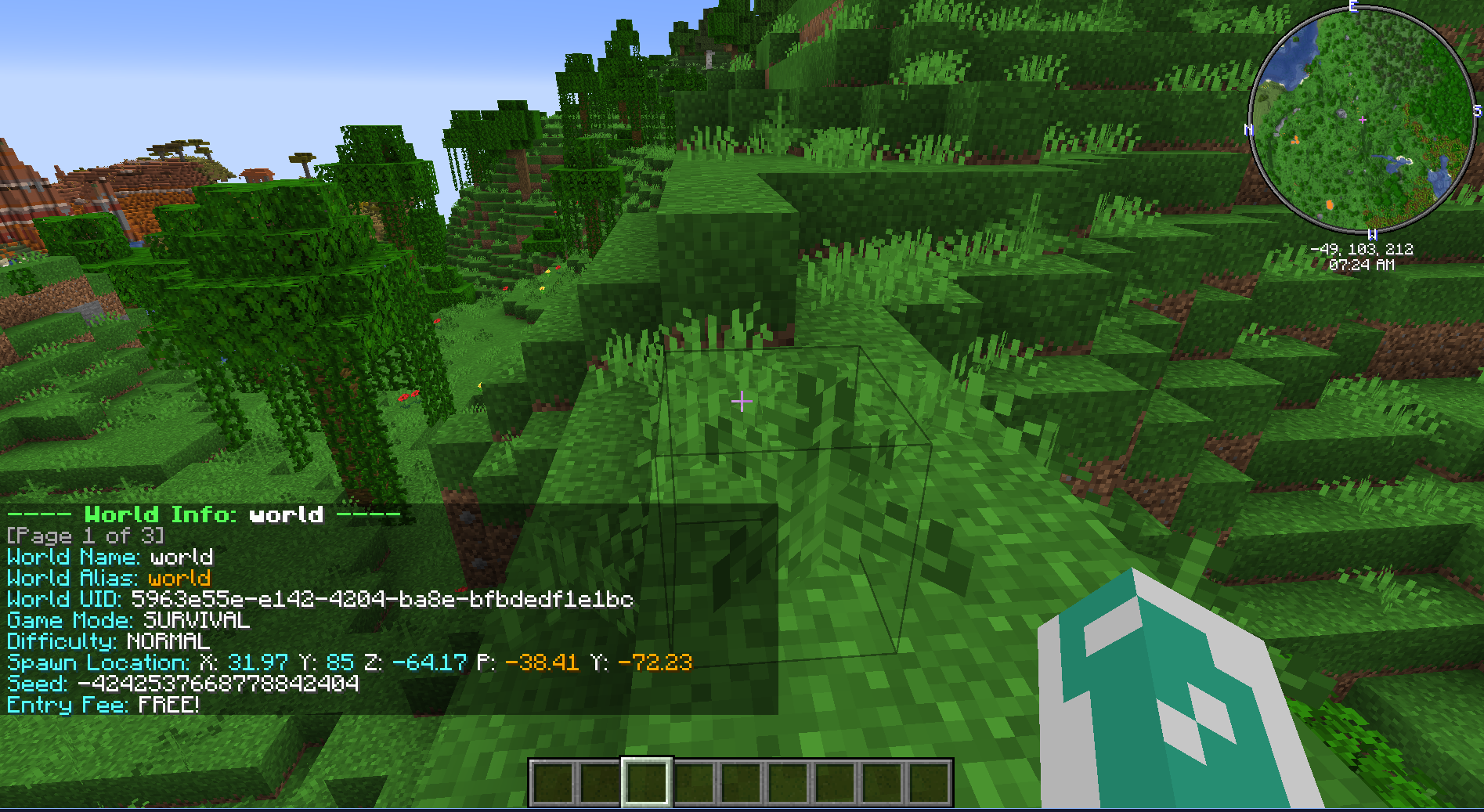
Displays information about the world you're in or the world you pass in. You can specify a world to look at in particular if required.
This command is mainly for debugging. Be that by the developers of Multiverse or you!
Usage
/mv info [world] [--page <number>] [--filter <string>]Examples
/mv info/mv info world
Permission
multiverse.core.info
List Command
Description
The list command will only show you the worlds that you have access to enter. For example, if you are blacklisted in sky but not in world and world*nether, when you type /mv list you would see:
====[ Multiverse World List ]====
world - normal
world_nether - NETHERThis allows you to have worlds that are completely unknown to people. Keep in mind though, if you're in a world that someone else cannot view, and you chat from it, your chat prefix would be of that world. Here is an example of a world listing.
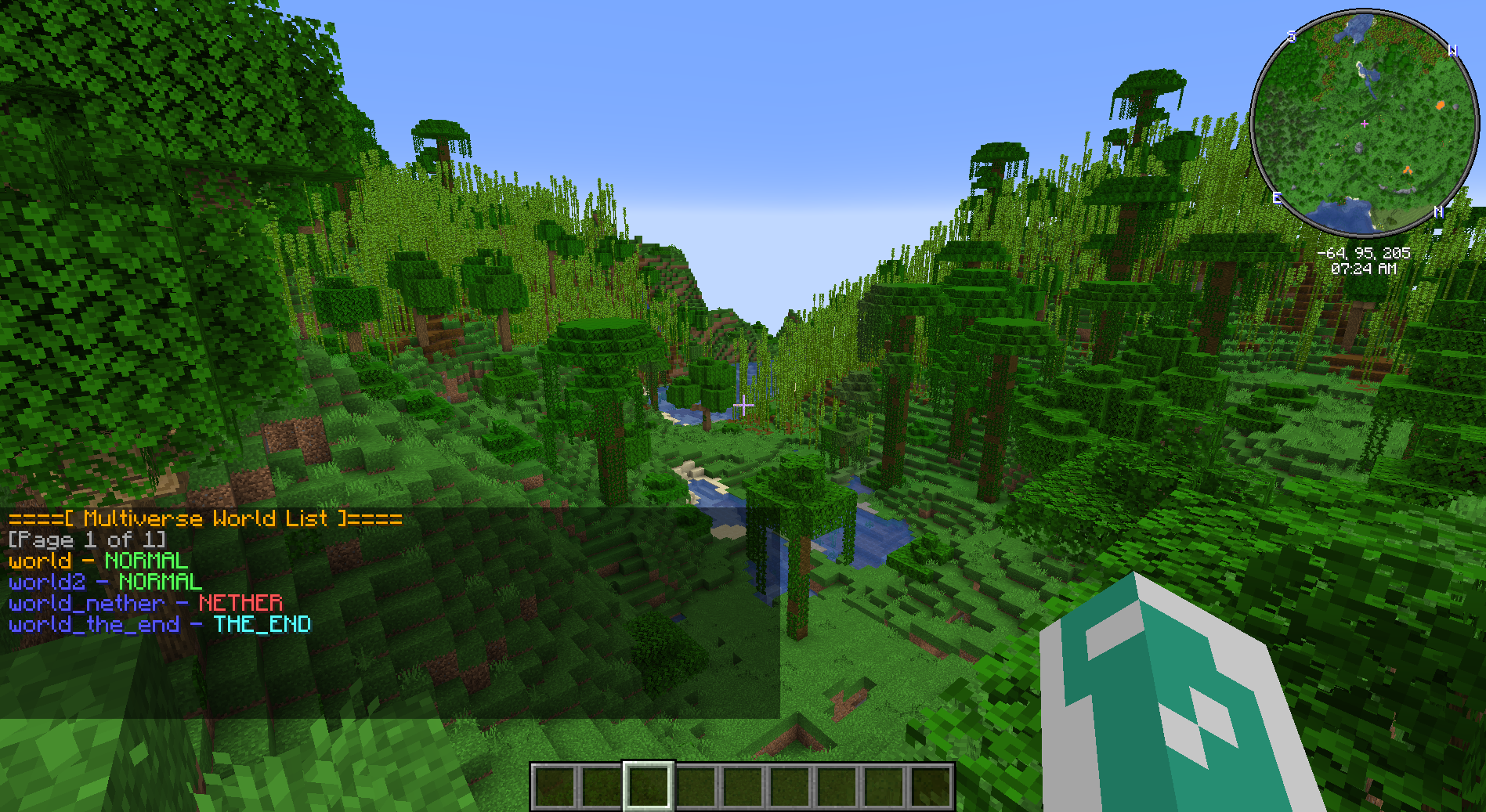
To get colored worlds, you will need to use the world alias feature .
Usage
/mv list [--raw --page <number> --filter <string>]--raw/-r- Shows world names instead of aliases--page/-p- Page number--filter/-f- Filter string
Permission
multiverse.core.list.worlds
Load Command
Description
Loads an unloaded world back into the server. This is the counterpart to /mv unload . The world must already exist in Multiverse's worlds.yml — use /mv import to add a new world.
See also: /mv unload and /mv remove
Usage
/mv load <world> [--skip-folder-check]<world>- The world to load.--skip-folder-check/-f- Skip the check that verifies the world folder exists on disk.
Examples
/mv load my_world/mv load my_world --skip-folder-check
Permission
multiverse.core.load
Meta Info Command
Description
Lists all world meta key-value pairs stored for a world. World meta is arbitrary string data you can attach to any world for use by other plugins or PlaceholderAPI.
Usage
/mv meta info [world] [--page <page>] [--filter <filter>][world]: The world to inspect. Defaults to your current world in-game. Required from the console.--page <page>: The page of the list to show.--filter <filter>: Filter the results.
Examples
/mv meta info/mv meta info survival --filter cat
Permission
multiverse.core.meta.info
Meta Modify Command
Description
Sets or removes a world meta key-value pair for a world. Meta values are arbitrary strings and are stored in worlds.yml.
Usage
/mv meta modify [world] <set|remove> <key> [value][world]: The world to modify. Defaults to your current world in-game. Required from the console.<set|remove>: Whether to set or remove the meta entry.<key>: The meta key (no spaces).[value]: The value to store. Required when usingset.
Examples
/mv meta modify survival set category pvp/mv meta modify lobby set display-name Hub/mv meta modify survival remove category
Permission
multiverse.core.meta.modify
Modify Command
Description
The modify command has been documented as 4 separate sections for easier documentation. Please see the links below. NOTE: Entity spawning related properties has been moved to /mv entity-spawn-config command .
Usage
/mv modify set ...
[/mv modify add ...](<Modify-Command-(Add-Remove))
/mv modify remove ...
/mv modify reset ...
Modify Command (Set)
Description
The modify command lets you set the properties for your Multiverse worlds in game without needing to ever edit a config file. The set command sets a non-array value. An example would be turning animal spawning on, or setting the world scale to 2. The PROPERTY value that is required for this command must be one of the values listed on the properties page . If you do not specify a world, the current world will be used. A world is required from the console.
A note about animals and monsters
The animals and monsters values, when used with set, will set the overall spawn behavior of animals/monsters. If you have any monsters in the monsters list and you /mv modify set monsters true you're saying: "I want monsters to spawn, except the ones in the monsters list"
See also: /mv modify [world] <add/remove> and /mv modify [world] reset
Usage
/mv modify [world] set <property> <value>Examples
/mv modify world set pvp false/mv modify world_extreme set difficulty hard/mv modify death_world set respawn-world respawn_world
Permission
multiverse.core.modify
Modify Command (Add/Remove)
Description
The modify command lets you add or remove values in each world without needing to ever edit a config file. The add and remove sub-Commands allow you to add and remove values from variables that contain lists, such as world blacklists. If you do not specify a world, the current world will be used. A world is required from the console.
See also: /mv modify [world] set
Usage
/mv modify [world] <add|remove> <property> <value>Variables you can add to or remove from
- worldblacklist - String: What worlds can you not go to from here.
See the World Properties page for more detail on these variables.
The second item is the type required. This means you cannot do /mv modify add world-blacklist world2
See also: /mv modify [world] set and /mv modify [world] reset
Examples
/mv modify myworld add world-blacklist badworld/mv modify myworld remove world-blacklist badworld
Permission
multiverse.core.modify
Modify Command (Reset)
Description
Resets a property's value back to the default. If you do not specify a world, the current world will be used. A world is required from the console.
See also: /mv modify set and /mv modify <add|remove>
Usage
/mv modify [world] reset <property>Examples
/mv modify reset world-blacklist/mv modify world_nether reset respawn-world
Permission
multiverse.core.modify
Purge Entities Command
Description
Purges the entities that are disallowed based on the entity-spawn-config settings. See the Entity Spawn Config page for more information.
Usage
/mv purge-entities [world]Permission
multiverse.core.purge
Purge All Entities Command
Description
Removes all entities from the world, or only spawn categories specified.
Usage
/mv purge-all-entities [world] [spawn-categories][spawn-categories]- Comma separated list of spawn categories to purge. If not specified, all spawn categories will be purged.
Permission
multiverse.core.purgeall
Regen Command
Description
Regenerate your world to where EVERYTHING built gets destroyed and regenerated. If the --seed argument is provided, a new seed will be used. Otherwise the world will be regenerated using the same seed.
Usage
/mv regen <world> [--seed [value]] [--reset-world-config] [--reset-gamerules] [--reset-world-border] [--remove-players [destination]]--seed [value]Set the new seed to use. If a seed value is not specified then a random seed will be used--reset-world-configEverything inworlds.ymlassociated with the world will be wiped--reset-gamerulesGamerules will go back to their vanilla defaults--reset-world-borderThe world border will go back to the vanilla default--remove-players [destination]/-rTemporarily teleport players out of the world before regeneration, then teleport them back to the regenerated world after regeneration completes successfully. If this flag is not specified and players are still in the world then the command will error. You can optionally provide a destination to send players to temporarily instead of the default world.
Examples
/mv regen world/mv regen world --seed/mv regen world --seed 11546315
Permission
multiverse.core.regen
Reload Command
Description
Reloads any Multiverse-Core as well as any official Multiverse plugin configs. Any values currently loaded into memory will be replaced with the config values. These configs also get reloaded on plugin load/server restart, so there is no need to use if after one of those. Any value in worlds.yml can be modified in game by using the /mv modify command and that is the recommended way to go about doing so.
Usage
/mv reloadPermission
multiverse.core.reload
Remove Command
Description
Unloads a world from the Bukkit server and removes it from the Multiverse worlds.yml. It will NOT delete the world folder.
See also: /mv unload and /mv delete
Usage
/mv remove <world> [--remove-players [destination]] [--no-unload-bukkit-world] [--no-save]<world>- World name--remove-players [destination]/-r- Remove players from the world first. If this flag is not specified and players are still in the world then the command will error. You can optionally provide a destination to send players to instead of the default world.--no-unload-bukkit-world- Do not unload the world from the Bukkit server. Usually only used of your world is handled by another plugin as well.--no-save- Disable saving of world before unloading. World may rollback to previous state if auto-save is disabled
Examples
/mv remove world2 --remove-players/mv remove world2 --remove-players lobby
Permission
multiverse.core.remove
Set Spawn Command
Description
The set spawn command does exactly what it sounds like. You can walk to where you want players to spawn, type /mv setspawn and it's set. To go to the spawn you can use /mv spawn . If you would like to run this from the console or specify a location anyway just add your location in the format: [x],[y],[x],[pitch],[yaw]. Pitch and yaw are optional and will default to 0,0
Usage
/mv setspawn [location][location]- In the format:worldname:x,y,z[,pitch,yaw]. World name can be omitted if running in-game. Example:10,64,100,90,180
Examples
/mv setspawn(in-game only)/mv setspawn testworld:0,0,0/mv setspawn 10,64,100,90,180(in-game only)
Permission
multiverse.core.spawn.set
Details
Spawn Command
Description
Allows you to teleport yourself (or another player) to their own current world's spawn. If you want to teleport a player to a different world or different location within a world please see /mv tp . This command does tell the teleportee who teleported them, even if it was the console. This is done to prevent admin abuse.
Usage
/mv spawn [player(s)] [--unsafe][player]: The player to teleport, or defaults to yourself. Must be specified if running from the console.--unsafe: allows teleportation even if the location is deemed unsafe.
Examples
/mv spawn/mv spawn lithium3141
Aliases
/mv spawn ...
/mvspawn ...
Permission
multiverse.core.spawn.self.[worldname]
multiverse.core.spawn.other.[worldname]
Teleport Command
Description
Allows you to teleport yourself or others to a specified world or destination. There are many different permissions associated with this command, with the categories being self and other; allowing you to teleport yourself and others respectively.
Each Type of Destination will have each of the permissions (self and other) associated with it. The most basic example is for worlds:
multiverse.teleport.self.w
multiverse.teleport.other.wThe letter(s) at the end are the identifier for the destination . This is the same thing you would put before the destination if you teleport to it: /mv tp w:MyWorld. So Portals would be:
multiverse.teleport.self.p
multiverse.teleport.other.pEven if you have the multiverse.teleport.other.w permission, you can only teleport people to worlds where YOU can go yourself. This will allow you to teleport a player to a world that they themselves cannot go to, as long as you have the permission to do so.
Destinations
/mvtp works hand in hand with Destinations! See also: Destinations
Usage
/mv tp [player(s)] <destination> [--unsafe][player(s)]: the player(s) to teleport. Leave empty to teleport yourself only.<destination>: the destination to teleport to. See Destinations--unsafe: allows teleportation to unsafe destinations
Examples
/mv tp world/mv tp Rigby90 world_nether/mv tp Rigby90,Jeb_,Notch world/mv tp @a b:playerbed/mv tp Jeb_ e:world:70,64,0:90:90
Aliases
/mv teleport .../mv tp .../mvtp ...
Permission
multiverse.teleport.self.<dest-id>.[finer-permission]
multiverse.teleport.other.<dest-id>.[finer-permission]
The optional [finer-permission] suffix is the specific destination name (world name, anchor name, portal name, etc.). Whether it is required depends on the use-finer-teleport-permissions option in config.yml :
true(default for new installs): Both the base permission and the finer permission are needed. For example, to teleport toworld_nethera player needs bothmultiverse.teleport.self.wandmultiverse.teleport.self.w.world_nether.false(default when migrating from MV4): Only the base permission is needed (e.g.multiverse.teleport.self.w), granting access to all destinations of that type.
| Destination | Base permission | Finer permission |
|---|---|---|
World (w) | multiverse.teleport.self.w | multiverse.teleport.self.w.<worldname> |
Anchor (a) | multiverse.teleport.self.a | multiverse.teleport.self.a.<anchorname> |
Exact (e) | multiverse.teleport.self.e | multiverse.teleport.self.e.<worldname> |
Player (pl) | multiverse.teleport.self.pl | multiverse.teleport.self.pl.<playername> |
Cannon (ca) | multiverse.teleport.self.ca | multiverse.teleport.self.ca.<worldname> |
Bed (b) | multiverse.teleport.self.b | multiverse.teleport.self.b.<playername> |
Portal (p) | multiverse.teleport.self.p | multiverse.teleport.self.p.<portalname> |
Replace self with other in any of the above to allow teleporting other players.
See also: Destinations for full per-destination format details.
Unload Command
Description
This command will ONLY unload the world from the server. It does NOT remove it from the Multiverse Configs OR delete the world folder. This can be used in servers that have lots of rarely used worlds to help with performance.
See also: /mv remove and /mv delete
Usage
/mv unload <world> [--remove-players [destination]] [--no-save]<world>- Target world to unload.--remove-players [destination]/-r- Remove players from the world first. If this flag is not specified and players are still in the world then the command will error. You can optionally provide a destination to send players to instead of the default world.--no-save- Do not force the world to be saved before unloading - will rollback the world some time. use with caution
Examples
/mv unload world/mv unload lobby --no-save/mv unload lobby --remove-players hub
Permission
multiverse.core.unload
Who Command
Description
Displays who is currently in a specific world. If you do not pass in a specific world then your current world will be used.
Usage
/mv who [world]Examples
/mv who/mv who world_nether
Permission
multiverse.core.list.who
Who All Command
Description
Displays who is currently in all worlds. /mv who will not show worlds that are empty.
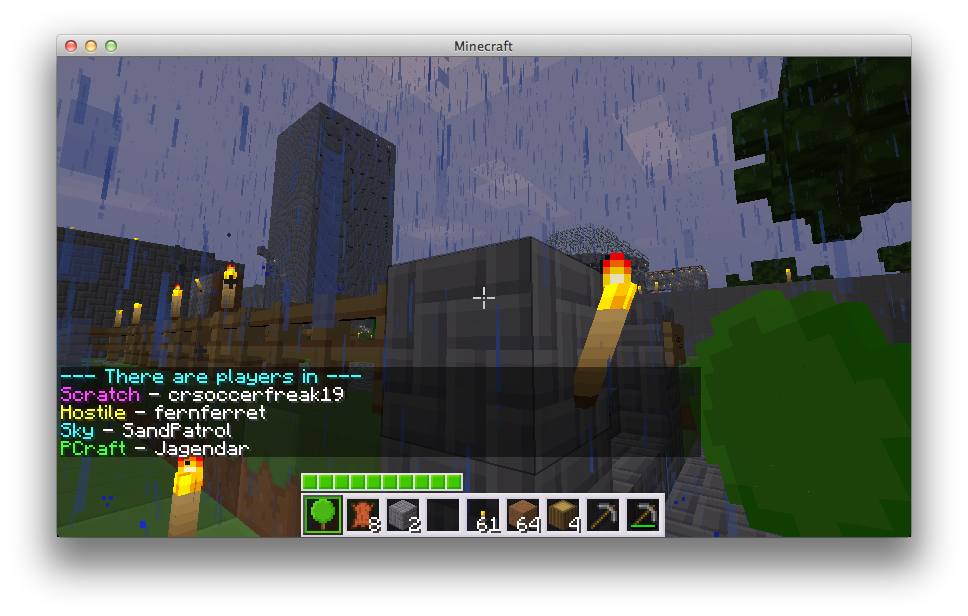 Here is an example of the
 /mv who command in use combined with both world aliases and colors .
Usage
/mv whoall [--page <number>] [--filter <string>]Permission
multiverse.core.list.who.all
World Border Add Command
Description
Increases (or decreases, with a negative value) the world border size by the given amount. An optional transition duration causes the border to move smoothly from its current size to the new size.
Time format
All time parameters in world border commands accept three formats:
| Format | Meaning | Example |
|---|---|---|
| plain number | game ticks (20 ticks = 1 second) | 200 = 10 seconds |
<n>s | real-time seconds | 10s = 10 seconds |
<n>d | in-game days (24 000 ticks each) | 2d = 2 game days |
On Minecraft 1.21.11+, the underlying world border API accepts ticks directly. On older versions, tick values that cannot be expressed exactly in whole seconds will produce a rounding warning.
Usage
/mv worldborder add <size> [time] [world]<size>: The number of blocks to add to the border diameter. Use a negative value to shrink it.[time]: How long the transition should take. Defaults to0(immediate). See the time format table above.[world]: The world to modify. Defaults to your current world in-game.
Examples
/mv worldborder add 100— immediately expands the border by 100 blocks/mv worldborder add -200 60s— shrinks by 200 blocks over 60 seconds/mv worldborder add 500 200— expands by 500 blocks over 200 ticks (10 seconds)
Permission
multiverse.core.worldborder
World Border Center Command
Description
Sets the center of the world border.
Usage
/mv worldborder center <x> <z> [world]<x>/<z>: The X and Z coordinates for the center.[world]: The world to modify. Defaults to your current world in-game.
Examples
/mv worldborder center 0 0/mv worldborder center 128 -64 survival
Permission
multiverse.core.worldborder
World Border Damage Command
Description
Configures how much damage players receive when outside the border, and the buffer distance before damage starts.
Usage
/mv worldborder damage amount <damage> [world]
/mv worldborder damage buffer <distance> [world]damage amount <damage>: Damage dealt per second per block outside the border.damage buffer <distance>: How many blocks outside the border a player can be before taking damage.[world]: The world to modify. Defaults to your current world in-game.
Examples
/mv worldborder damage amount 0.5— half a heart per second per block outside/mv worldborder damage buffer 5— 5 block grace zone
Permission
multiverse.core.worldborder
World Border Get Command
Description
Displays the current size of the world border.
Usage
/mv worldborder get [world][world]: The world to query. Defaults to your current world in-game.
Permission
multiverse.core.worldborder
World Border Set Command
Description
Sets the world border to a specific diameter. An optional transition duration causes the border to move smoothly from its current size to the target size.
Usage
/mv worldborder set <size> [time] [world]<size>: The new border diameter in blocks.[time]: Transition duration. Defaults to0(immediate). See time format table.[world]: The world to modify. Defaults to your current world in-game.
Examples
/mv worldborder set 1000— sets border to 1000 blocks immediately/mv worldborder set 500 120s survival— shrinks/grows to 500 blocks over 2 minutes/mv worldborder set 2000 48000— transitions to 2000 blocks over 48 000 ticks (2 in-game days)
Permission
multiverse.core.worldborder
Version Command
Description
Displays the currently installed version of Multiverse-Core and its authors. Useful for bug reports and support requests.
Usage
/mv versionPermission
multiverse.core.version
World Border Warning Command
Description
Configures the warning distance (blocks) and warning time (time before the border reaches the player) shown to players as the border closes in.
Usage
/mv worldborder warning distance <distance> [world]
/mv worldborder warning time <time> [world]warning distance <distance>: How close to the border (in blocks) before the warning overlay appears.warning time <time>: How far in advance (in ticks/seconds/days ) the warning should appear as the border shrinks towards the player.[world]: The world to modify. Defaults to your current world in-game.
Examples
/mv worldborder warning distance 10— warn when within 10 blocks/mv worldborder warning time 15s— warn 15 seconds before the border reaches the player/mv worldborder warning time 300— warn 300 ticks (15 seconds) in advance
Permission
multiverse.core.worldborder